
Click the Images Below to Enlarge
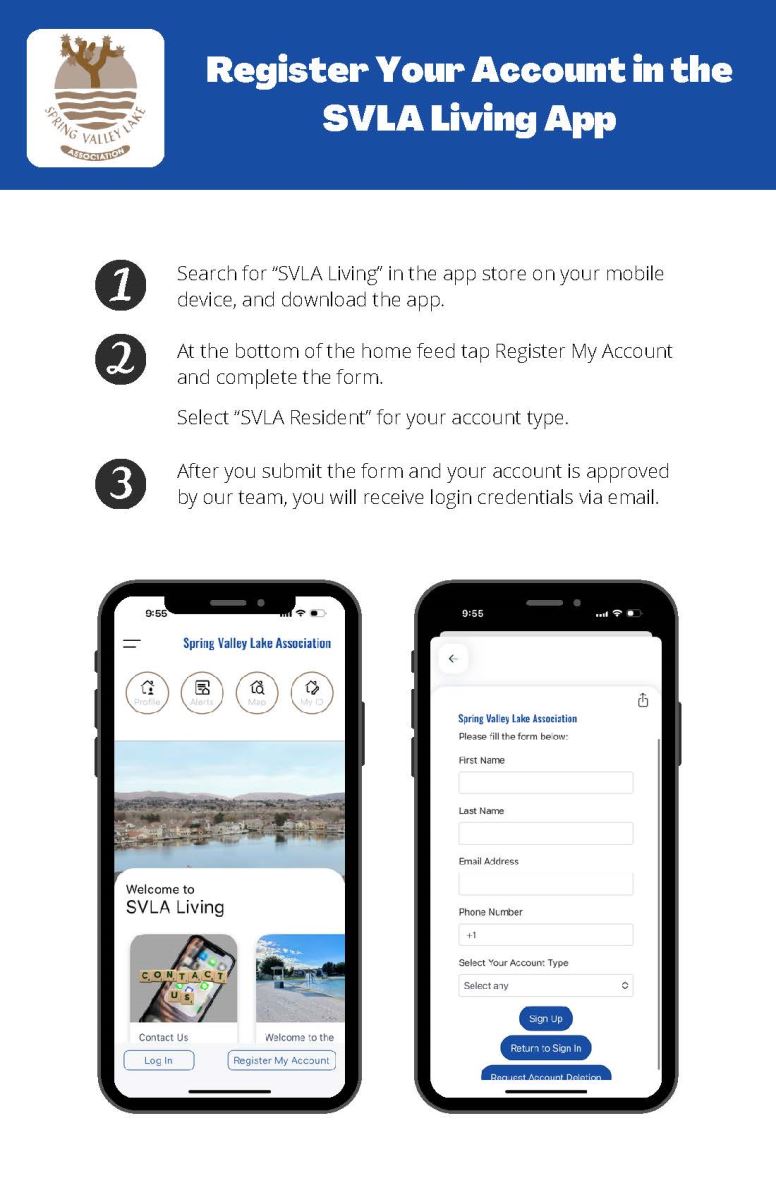
All property owners who have their email on file with the Association Office had an account pre-made for them. All others will need to create a new account.
The Association office will need to confirm your account, before you will be able to login and have access to the app. After account creation, please allow a minimum of one (1) hour before trying to login. When your account is confirmed, you should receive an email with your temporary password. If you did not receive the email, simply use the last four (4) digits of your phone number. If you experience trouble logging in, please contact the Administration office, or on weekends Public Safety Dispatch.
Membership IDs & User Profiles
It is recommended that all property owners and residents of the community download the app to utilize it as the Membership ID.
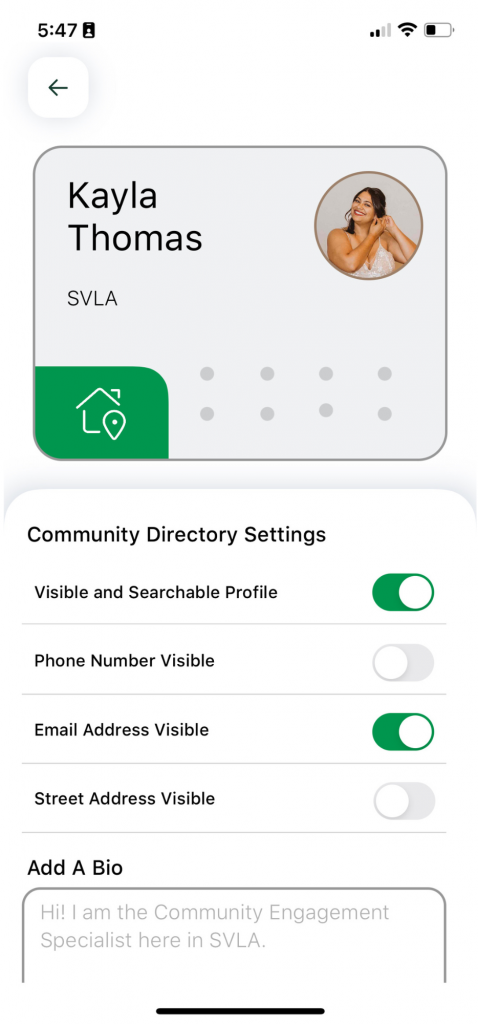
Your user profile will now function as your Membership ID. All profiles must have an address and photo attached to it. You can also add a bio, and make your phone number, email, and physical address visible to other app users. Make sure you update your preferences to your desired settings.
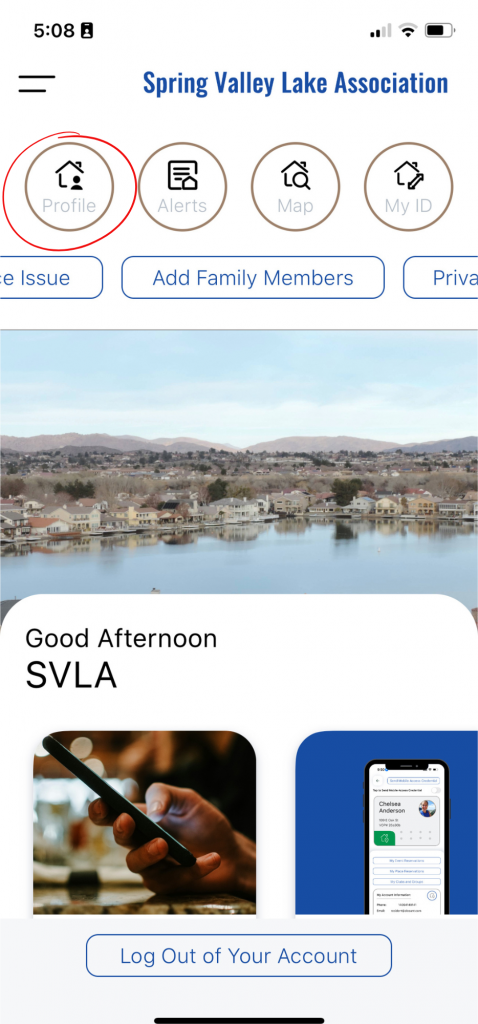
To access your profile, select the ‘Profile’ button at the top left corner of the home screen.
Family Profiles
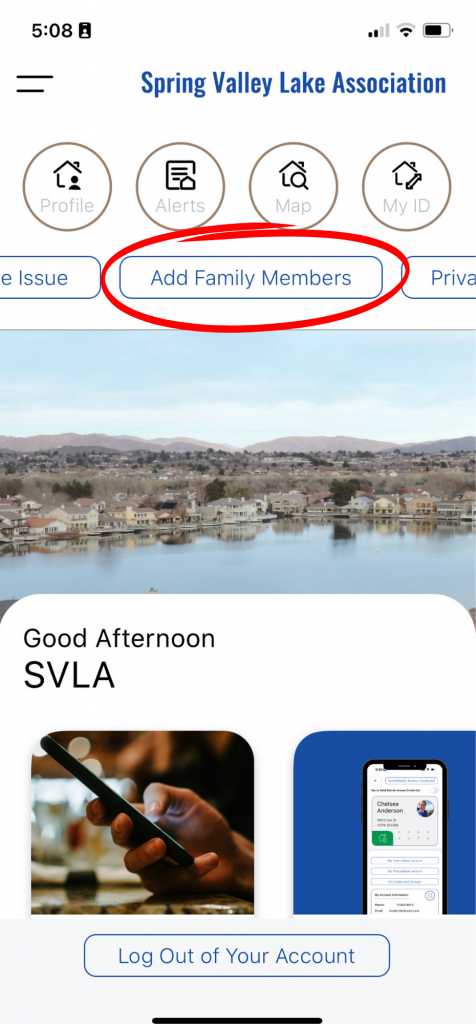
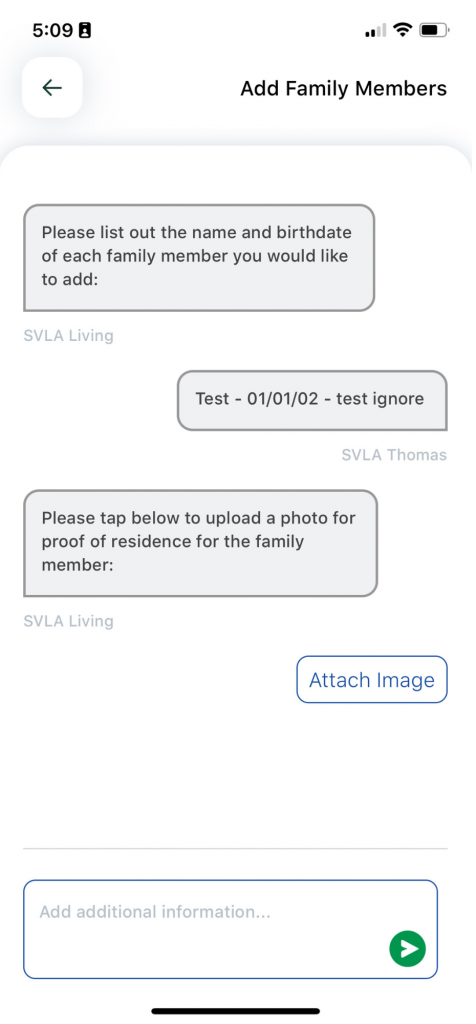
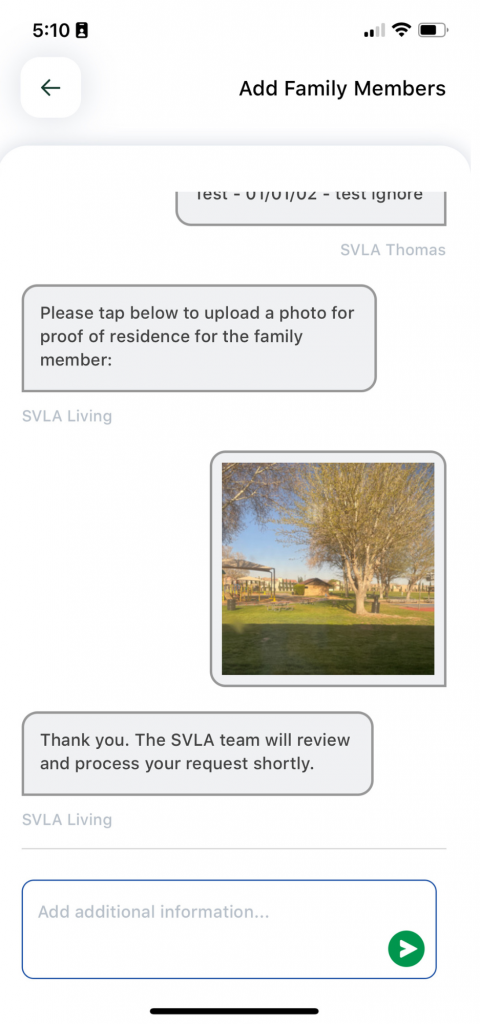
All children aged nine (9) and older who do not have access to a smartphone, or their own email address will need to have a family profile created for them. To add family members, select the ‘Add Family Members” from the list of blue, square, smart buttons on the home screen. You will be asked to provide the name, birthdate, and photo of the child being added. To add multiple children, please make multiple requests.
Once the request is submitted, the Association office will create your child a family profile and will link it to the main property owners account.
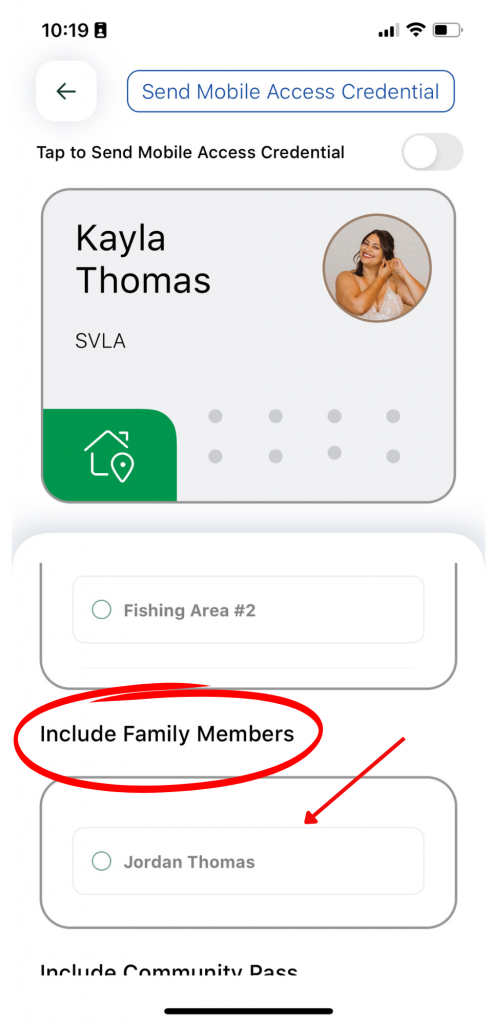
Once all family profiles are created and linked, they will become visible under your ID. Select ‘My ID’ in the top right corner of the homescreen. Scroll down to the bottom of the page, you will see an area titled ‘Include Family Members’ this is where all linked profiles will appear, family and guests.

Architecture Appointments
All residents making a modification to the exterior of the home are required to submit an architecture application for approval by the Architectural Liaison.
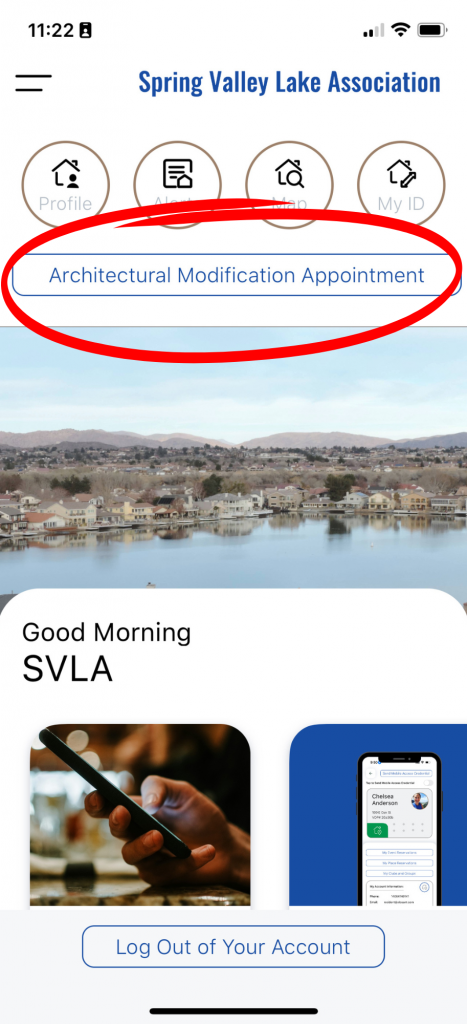
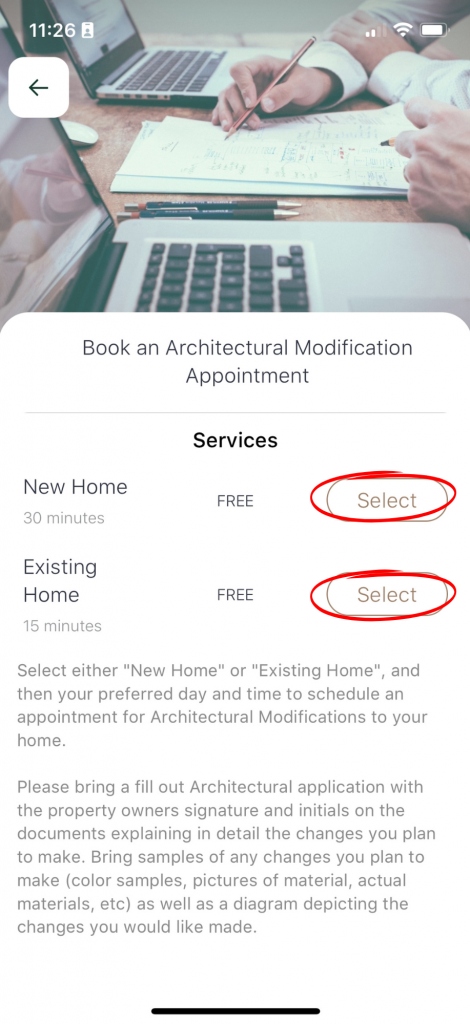
To make an appointment through the app, select ‘Architectural Modification Appointment’ from the blue, square buttons on the home screen. Then specify which type of appointment is required, either new home or existing home. Then chose a date and time for the appointment.
If you need assistance making an appointment, please contact the Code Enforcement Department at 760-245-9756 or email code@svla.com

Checking In at SVL Locations
Through the app, you can check in at different SVLA locations. This will inform Public Safety that you are currently at that location which will eliminate the need for you to show them your Member ID when they complete their checks.
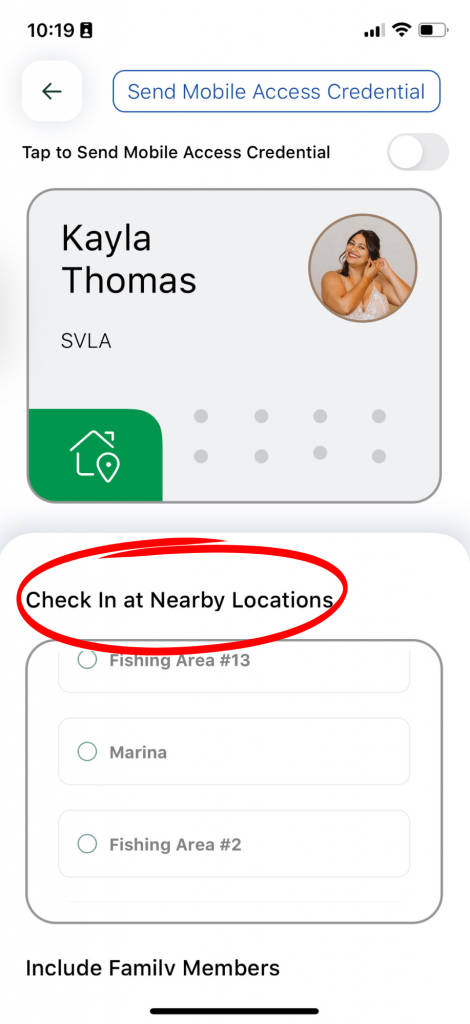
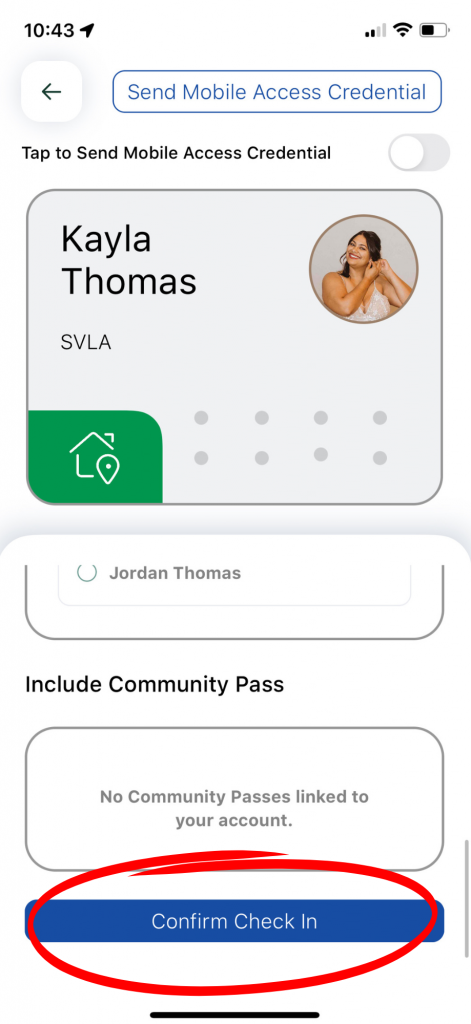
To check in at a location, go to ‘My ID’, which is in the top right corner of the home screen. Scroll down to ‘Check in at Nearby Locations’ and select the location you are at. If there are other family members with you, select them under ‘Include Family Members’. Once the location and family members are selected, scroll down to ‘Confirm Check In’ at the very bottom of the page.